> ## Documentation Index
> Fetch the complete documentation index at: https://docs.pdf.co/llms.txt
> Use this file to discover all available pages before exploring further.
# Upload File
> This operation lets you upload your binary file, base64 data, or generated PDF to PDF.co and receive a URL in return. You can then use this URL with other PDF.co operations for further processing.
The Upload File operation acts as a bridge between the binary files or base64 data from the previous node and the PDF.co node, enabling smooth integration in automated workflows.
 ## Common Usage
These are typical workflows where files from popular sources are uploaded to PDF.co for further processing. Each example includes a step-by-step tutorial to help you set it up in n8n.
### Upload Binary File from Google Drive
You can get the file from Google Drive and upload it to PDF.co’s temporary storage before further processing.
### Upload Binary File from OneDrive
You can fetch files from OneDrive and send them to PDF.co’s temporary storage for use in other operations.
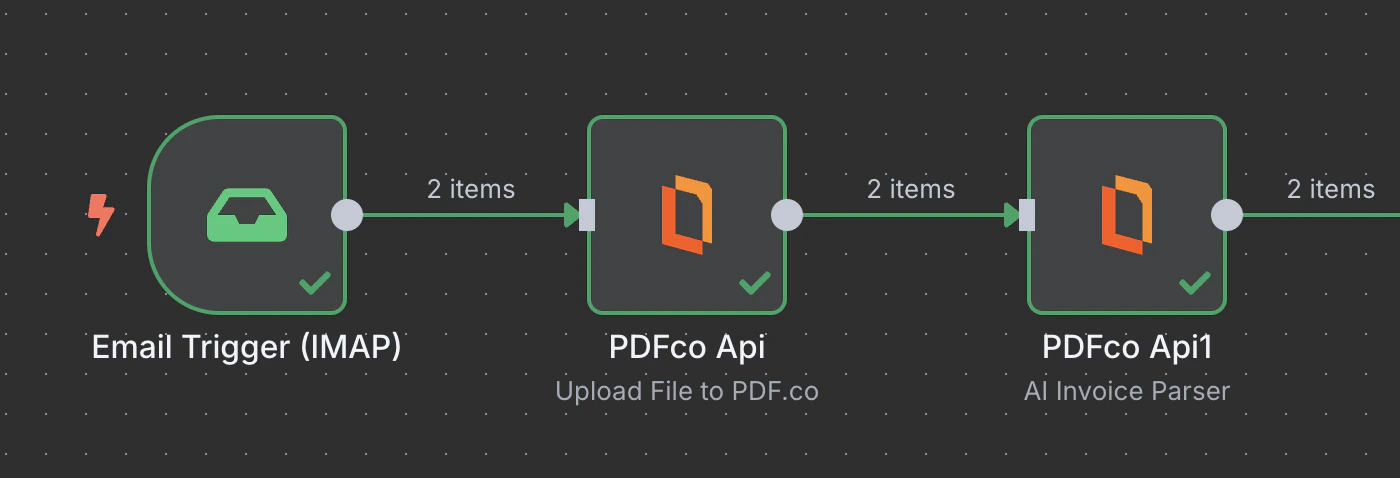
### Upload Binary File from IMAP
You can extract attachments from incoming emails and upload them to PDF.co’s temporary storage for processing.
## Input
| Name | Description | Required |
| :----------------- | :------------------------------------------------------------------------------------------------------------------------------------------------------------- | :------- |
| **Upload Method** | Choose the upload method: use Standard Upload to upload files directly (supports up to 2GB), or `Base64` Upload to upload files using **base64-encoded** data. | Yes |
| **Binary File** | Enable this toggle when uploading binary file data from a previous node. | No |
| **Base64 Content** | The base64 encoded content of the file to upload. | Yes |
| **File Content** | Enter the text content for the PDF file to be created and uploaded to our storage. | Yes |
| **File Name** | File name for the uploaded PDF. The input must be a string. | Yes |
## Output
| Name | Description |
| :---- | :--------------------------------------------- |
| `url` | Direct URL to the final PDF file stored in S3. |
## Common Usage
These are typical workflows where files from popular sources are uploaded to PDF.co for further processing. Each example includes a step-by-step tutorial to help you set it up in n8n.
### Upload Binary File from Google Drive
You can get the file from Google Drive and upload it to PDF.co’s temporary storage before further processing.
### Upload Binary File from OneDrive
You can fetch files from OneDrive and send them to PDF.co’s temporary storage for use in other operations.
### Upload Binary File from IMAP
You can extract attachments from incoming emails and upload them to PDF.co’s temporary storage for processing.
## Input
| Name | Description | Required |
| :----------------- | :------------------------------------------------------------------------------------------------------------------------------------------------------------- | :------- |
| **Upload Method** | Choose the upload method: use Standard Upload to upload files directly (supports up to 2GB), or `Base64` Upload to upload files using **base64-encoded** data. | Yes |
| **Binary File** | Enable this toggle when uploading binary file data from a previous node. | No |
| **Base64 Content** | The base64 encoded content of the file to upload. | Yes |
| **File Content** | Enter the text content for the PDF file to be created and uploaded to our storage. | Yes |
| **File Name** | File name for the uploaded PDF. The input must be a string. | Yes |
## Output
| Name | Description |
| :---- | :--------------------------------------------- |
| `url` | Direct URL to the final PDF file stored in S3. |