

Understanding PDF.co Webhooks
PDF.co supports webhooks for a variety of operations, allowing you to receive notifications when tasks such as document conversions or data extractions are finished. Instead of repeatedly checking the job status, you can set a callback URL to which PDF.co will send aPOST request with the job results.
To set up a webhook, you can use the callback parameter directly in your API calls. However, when integrating with automation platforms like Make.com, it’s often more convenient to use the std_params within the profiles parameter. The std_params allows you to define standard API parameters, including the callback URL, in a JSON format.
For example, a request to PDF.co might include:
Setting Up Make.com Scenarios
If you’re using a custom webhook or callback endpoint (rather than Make.com webhooks), it must respond immediately within a few seconds. If it takes longer than 20–30 seconds, the PDF.co API will mark the callback as failed and retry up to 3 times.
- Webhook Scenario: This scenario receives the callback from PDF.co.
- Request Scenario: This scenario initiates the PDF.co operation and sets the callback URL.
Creating the Webhook Scenario
- Create a new scenario.
- Select a Webhooks module and select Custom Webhook as the trigger.
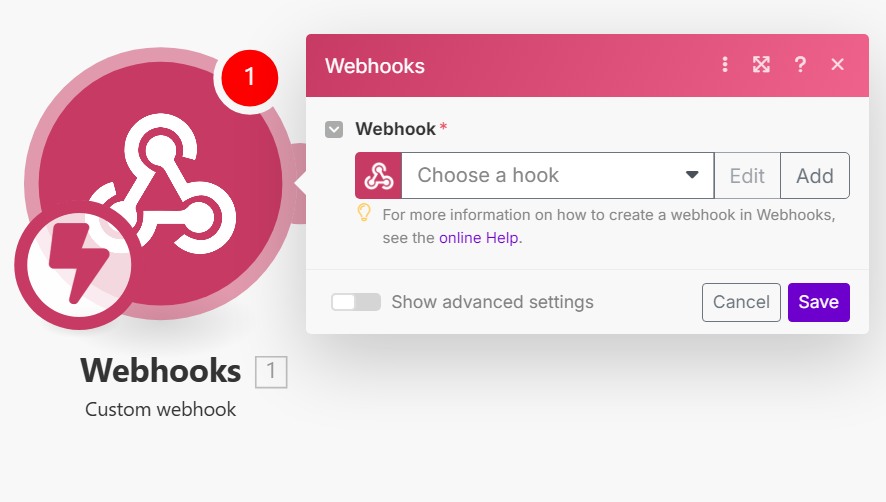
- Click “Add” and configure to accept
POSTrequests, as PDF.co API sends callbacks viaPOST.
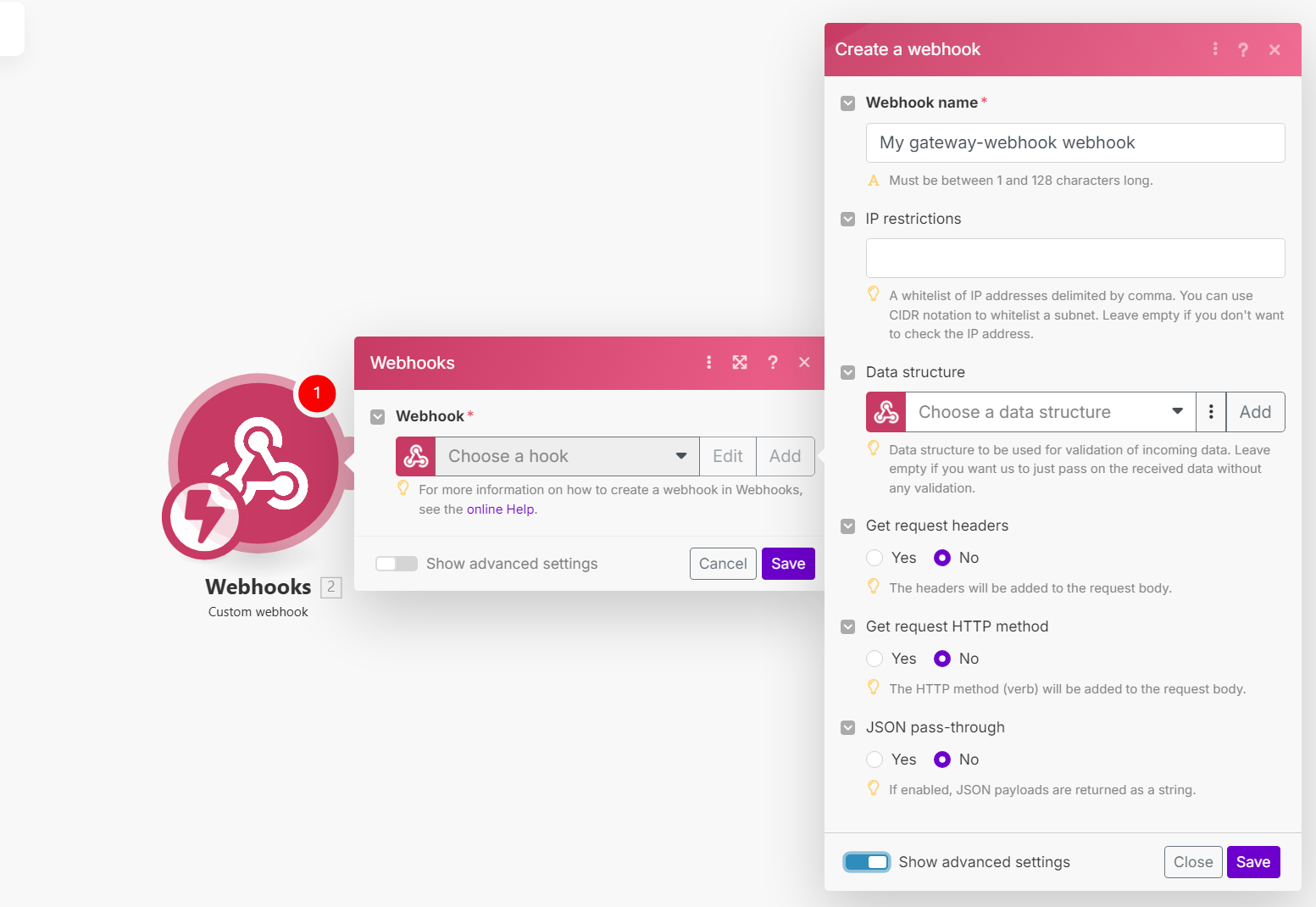
- Make.com will generate a unique URL for your webhook. Copy this URL for use in the next scenario.
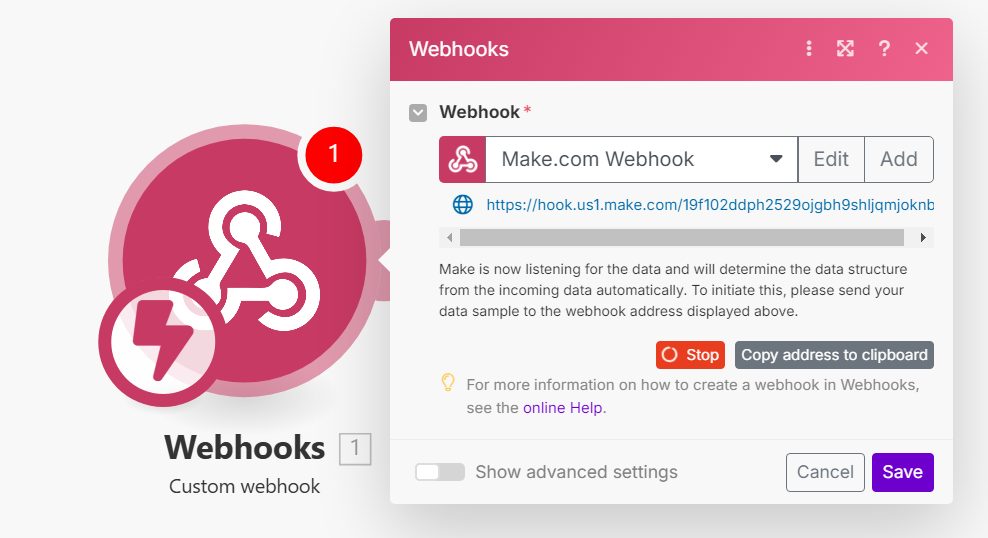
Initiating the PDF.co Request
- Create another scenario in Make.com with an appropriate trigger (e.g., manual or scheduled).
- Add a PDF.co action module, selecting the desired operation (e.g., Convert From PDF).
- In the action module, click on the “Advance Options” and set the profiles parameter to include the std_params with the callback URL. The profiles parameter should be a string containing a JSON object, like this:
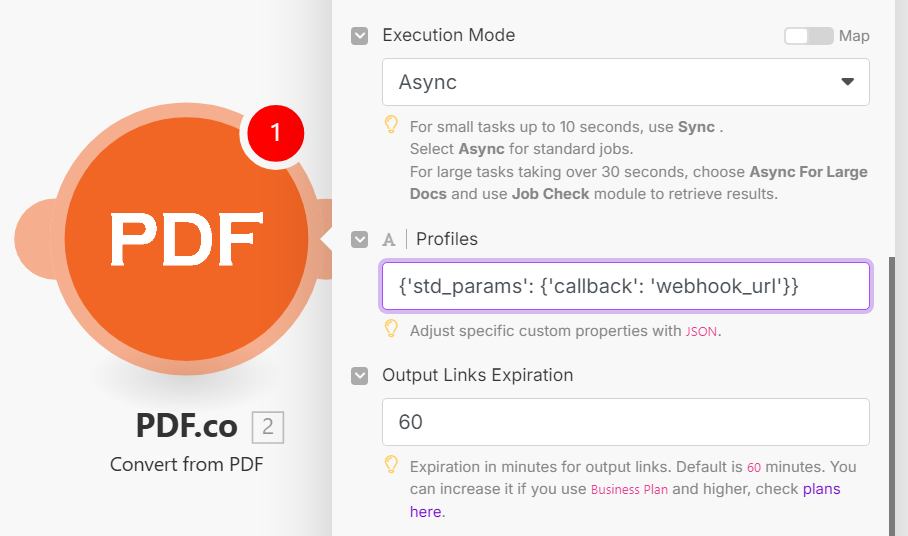
- Configure other parameters as needed for your specific PDF.co operation.